Authorized match staff may send one or more Range Reports in a single email to all match participants.
IMPORTANT: Only one Range Report email may be sent for a match. You cannot send another email after the first one, even if a report is corrected or a new report is created later.
Requirements
Before emailing Range Reports:
•Log in to Rezults with your Scopos Account.
•Open the desired match and select an official primary Result List.
•Confirm that you have permission to send emails for the match.
•Review and save every Range Report you intend to include.
•Confirm that at least one primary Result List has a non-empty Range Report.
The Email Range Reports button is shown only to users with the required permission.
Select the Range Reports
1.On the Range Report card, click Email Range Reports.
2.Wait while Rezults loads the available reports.
3.Review the list of non-empty Range Reports from the match's primary Result Lists. Each entry shows the Result List name, its Draft or Published status, and its headline when available.
4.Select each Range Report you want to include. All available reports are selected initially.
5.Use Select All or Clear All when needed. At least one report must be selected before the email can be sent.
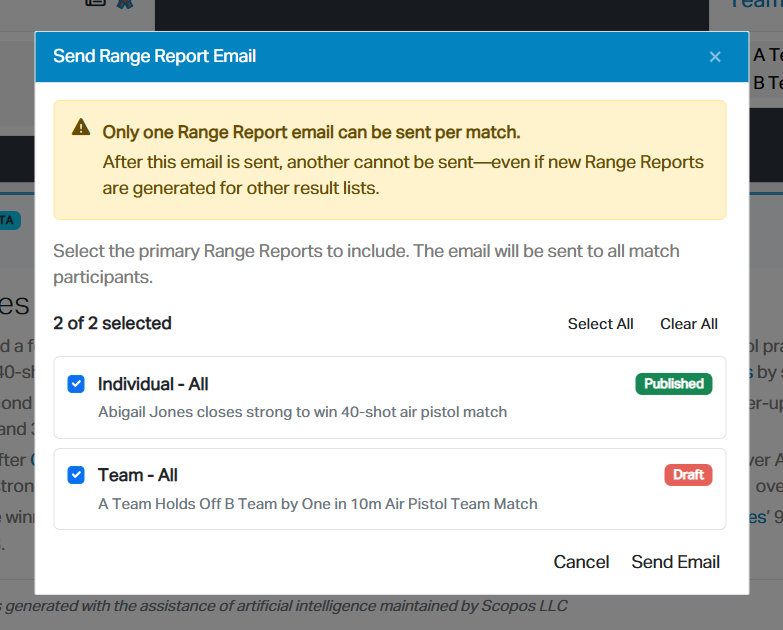
Both Draft and Published reports may be included. Emailing a Draft sends its current content but does not publish it on the Match page.
Empty reports and reports for secondary Result Lists are not shown. If Rezults could not check one or more Result Lists, the window displays a warning; review the available selection before continuing.
Send the Email
1.After selecting the reports, click Send Email.
2.Review the confirmation message. It identifies how many Range Reports will be sent and reminds you that only one email may be sent for the match.
3.Confirm that you want to send the email to all match participants.
4.Wait for Rezults to finish sending the email.
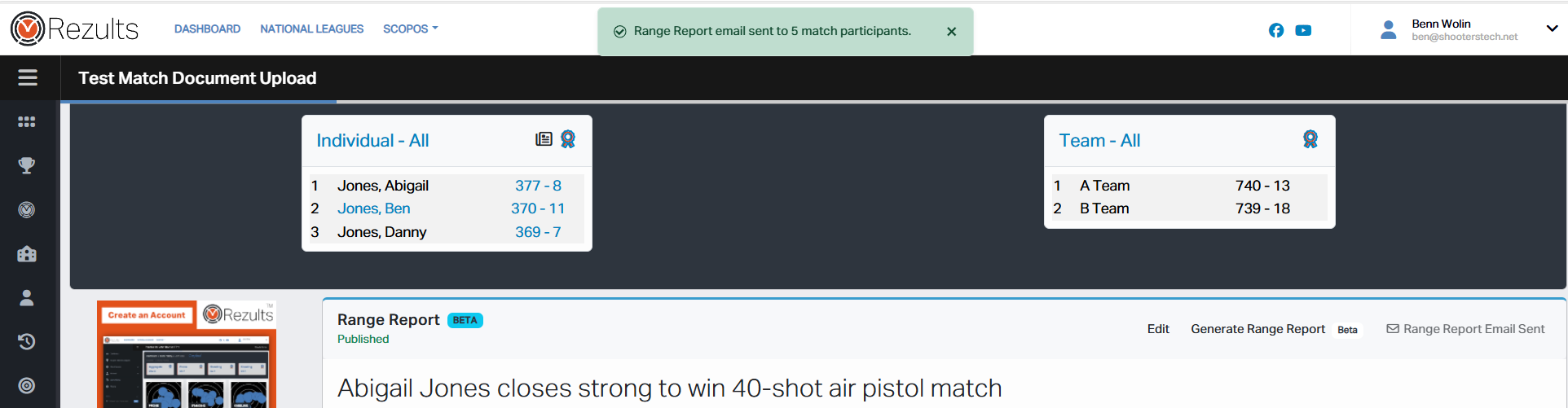
After the request succeeds, Rezults reports the number of emails sent and, when applicable, the number of recipients skipped. The button changes to Range Report Email Sent for the current match.
The recipient list cannot be edited in the Range Reporter window. Rezults sends the email to the match participants who can receive it.
Before You Send
Because the email cannot be sent again:
•Verify every selected report against its Result List.
•Make all corrections before opening the email window.
•Confirm that the correct Draft and Published reports are selected.
•Confirm that every report you want to include has been saved and is not empty.
See Also